· Documentation · 2 min read
Jira Example - Bulk Clone Issues
How to use Script Master's Script Console to clone up to 50 Jira issues selected by a JQL query, in a single run.

Overview
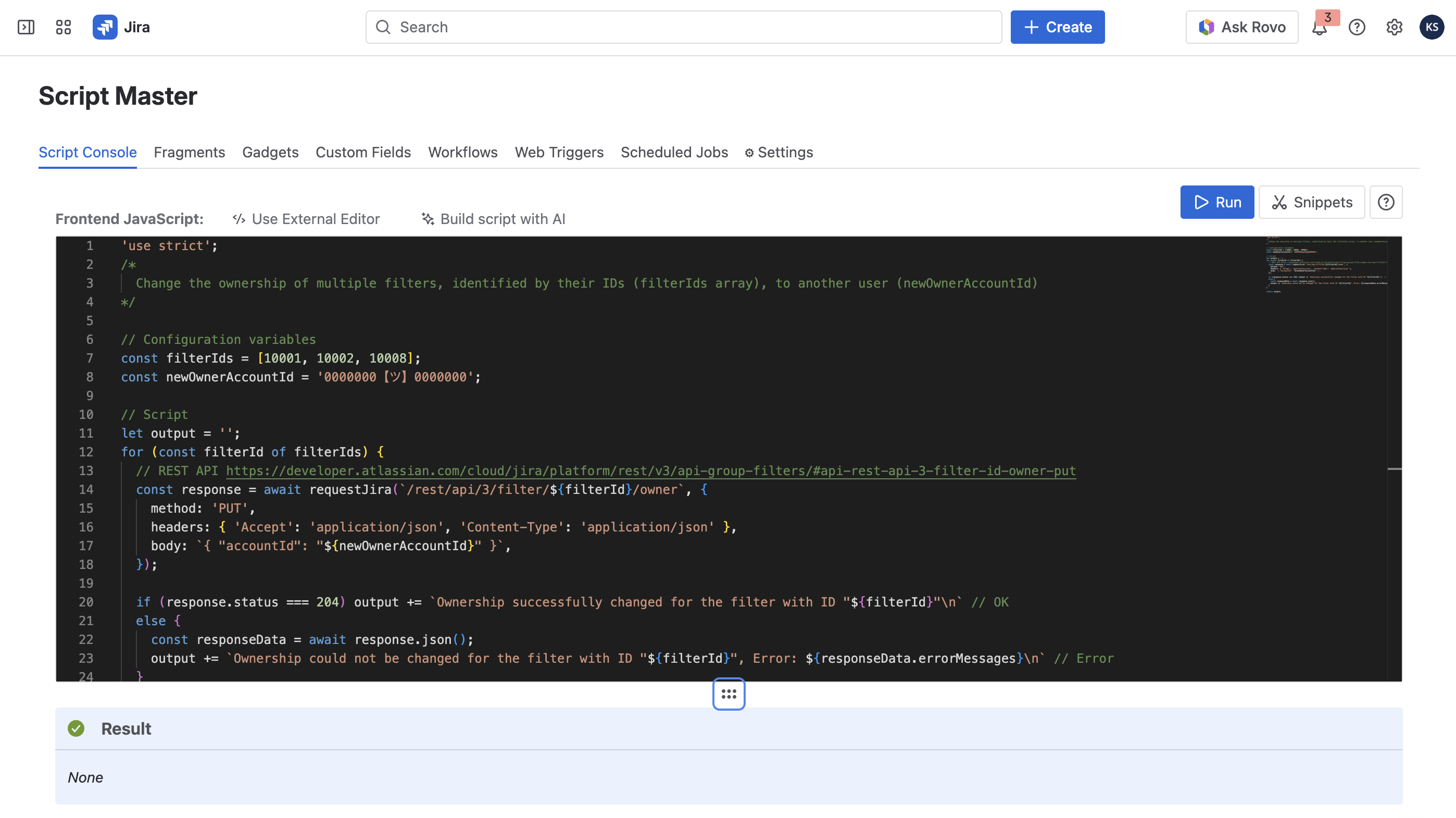
This example uses Script Master’s Script Console in Jira Cloud to clone several issues at once with a short Forge-based script.
The script takes a JQL query, fetches the matching issues through the Jira REST API, and clones them. It handles up to 50 issues per run.
// You can use JQL to select Jira issues for cloning. You can clone up to 50 issues at a time

// Configuration variables
const jql = 'filter = 10001';
const cloneFields = [
  'assignee',
  'components',
  'description',
  'fixVersions',
  'issuetype',
  'labels',
  'priority',
  'project',
  'summary',
  // Other required system fields
  // Add required custom fields as well
];
const newProjectKey = ''; // leave empty to create issues in the same project
const summaryPrefix = 'Cloned - '; // leave empty to create issues without any prefix

// Script
// Search for issues using JQL https://developer.atlassian.com/cloud/jira/platform/rest/v3/api-group-issue-search/#api-rest-api-3-search-get, pay attention, only first 50 issues will be returned
const issuesResponse = await requestJira(`/rest/api/3/search?jql=${jql}`, {
  headers: {
    Accept: 'application/json',
  },
});
const issuesData = await issuesResponse.json();

const output = [];
for (const issue of issuesData.issues) {
  const newIssue = { fields: {} };
  for (const cloneField of cloneFields) {
    newIssue.fields[cloneField] = issue.fields[cloneField];
  }

  if (newProjectKey) newIssue.fields.project = { key: newProjectKey };
  if (summaryPrefix) newIssue.fields.summary = `${summaryPrefix}${issue.fields.summary}`;

  // Create issue https://developer.atlassian.com/cloud/jira/platform/rest/v3/api-group-issues/#api-rest-api-3-issue-post
  const response = await requestJira(`/rest/api/3/issue`, {
    method: 'POST',
    headers: { Accept: 'application/json', 'Content-Type': 'application/json' },
    body: JSON.stringify(newIssue),
  });

  if (response.status === 201) {
    const clonedIssue = await response.json();
    output.push(`${issue.key} is cloned as ${clonedIssue.key}`);
  } else {
    const clonedIssueError = await response.json();
    output.push(`${issue.key} is not cloned because of ${JSON.stringify(clonedIssueError)}`);
  }
}
return output.join('\n');
How It Works
- Admin input. You provide a JQL query that selects the issues to clone.
- Issue retrieval. The script fetches the matching issues through the Jira REST API.
- Cloning. Each issue is copied into a new one, carrying over the configured field values.
- Logging. The script logs the keys of the issues it created.
The cap of 50 issues per run keeps the script inside Forge’s execution limits. Errors from the API are caught and reported rather than left to fail silently.
Why Use It
Bulk cloning comes up when you build templates, migrate a set of issues, or duplicate a sprint backlog.
This script does it in one run, the same way each time, with no external tool or extra Marketplace app involved.
Compatibility:
This example is available in the Jira version of Script Master, within the Script Console module.